Adventure
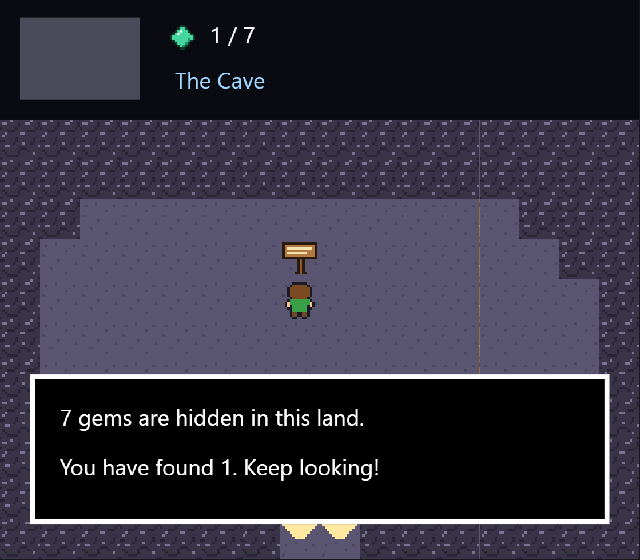
A top-down world in the style of the classic adventure games. The world is split into rooms. Walk off the edge of one and the camera slides across to the next. Step into the dark opening in the cliffs and the screen fades to black, then fades back up inside a cave. Seven gems are hidden around the world, and a sign in the cave keeps count.
Everything happens on one screen. The whole world is a single tilemap, and a camera shows one room of it at a time. One script, scripts/client/world.js, runs the game: walking, rooms, doors, gems and the text box.
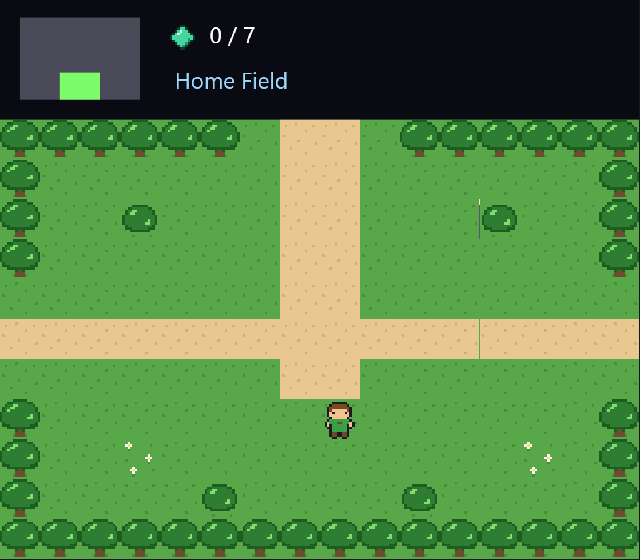
What you'll learn
- Building a large world from one Tilemap, with solid tiles that stop the player.
- Using a Camera as the view, and attaching a HUD to it so it stays on screen.
- Moving a physics body from a script, and switching a Sprite's animation to face the way it walks.
- Sliding the camera from room to room with an eased movement written in code.
- Fading to black and back with two animations and the screen's
animation_endevent. - Keeping all of a game's state in one screen variable, and running it as a small set of modes.
This is an advanced template. The steps below say what to build rather than every click. The second half of the guide, How it works, explains the tricky parts in detail.
Glossary
| Word | What it means here |
|---|---|
| Tile | One 16 × 16 square of the world, cut from the tile sheet. |
| Tile sheet | One picture holding every tile side by side. Tiles are numbered from 0, left to right. |
| Tilemap | A control that draws a grid of tiles. Its Solid field lists the tile numbers that stop physics bodies. |
| Room | One screenful of the world: 16 × 11 tiles, which is 256 × 176 pixels. |
| Camera | A control that is the view. Only what's inside it is drawn, scaled up to fill the screen. |
| Attached (to the camera) | A control whose Parent panel is the camera. It moves when the camera moves, which is how the HUD stays put. |
| Physics body | A control the physics engine moves and collides. The hero is dynamic: it collides with solid tiles. |
| Sprite | A control that plays frames from a sheet. Named runs of frames are clips. |
| Screen variable | A named value the screen keeps while it's open. This game keeps its state as JSON in one called g. |
| Mode | What the game is doing right now: play, slide (the camera is moving), fade (going through a door) or talk (the text box is open). |
| Tick | The screen event that runs every frame (every 16 ms here). The game loop lives there. |
| Ease | A curve that makes a movement start slowly, speed up, and slow down again at the end. |
Rebuild it from scratch
1. The project and its controls
Make a new project (File → New project) and, in Project → Project settings…, set Made for to Web & desktop only. Cameras, physics and tilemaps are web and desktop tools.
Open Advanced → Inputs and add five inputs:
| Input | Keys | Gamepad | Touch |
|---|---|---|---|
up | Up, W | D-pad up, left stick up | drag up |
down | Down, S | D-pad down, left stick down | drag down |
left | Left, A | D-pad left, left stick left | drag left |
right | Right, D | D-pad right, left stick right | drag right |
act | Space, Enter, E, J | A | the on-screen A button |
A touch drag counts as a direction input, so on a phone you drag anywhere to walk.
2. The tile sheet
Draw a sheet of twelve 16 × 16 tiles in the Pixel editor (Project → Pixel editor…, canvas 192 × 16). Order matters, because the map and the script use the numbers:

| # | Tile | Solid? | # | Tile | Solid? | |
|---|---|---|---|---|---|---|
| 0 | Grass | 6 | Cave door | (a door, see step 7) | ||
| 1 | Flowers | 7 | Cave floor | |||
| 2 | Sand path | 8 | Cave wall | yes | ||
| 3 | Tree | yes | 9 | Cave exit | (a door) | |
| 4 | Water | yes | 10 | Bush | yes | |
| 5 | Rock | yes | 11 | Bridge |
3. The world
Make one screen, world, 256 × 224 (a room is 176 tall, plus 48 for the HUD). Set Tick interval to 16 and Gravity to 0, and add a screen variable g (empty).
Open ▸ Advanced · web & desktop at the bottom of the Toolbox and add a Tilemap called map at 0, 0:
- Texture: the tile sheet. TileWidth / TileHeight: 16.
- Columns 64, Rows 33. The overworld is a 3 × 3 grid of rooms (48 × 33 tiles), and the cave sits to the right of the top row, in columns 48–63.
- Solid:
3,4,5,8,10.
Double-click the tilemap to paint it in the Tile painter. Each room is 16 × 11 tiles:
| Column 0 | Column 1 | Column 2 | Column 3 | |
|---|---|---|---|---|
| Row 0 | Old Forest | The Cliffs (the cave door) | Rocky Rise | The Cave |
| Row 1 | The Lake | Crossroads | Deep Woods | |
| Row 2 | Meadow | Home Field (start) | The River |
Two rules keep it walkable:
- Where two rooms meet, the gap in one room's edge must line up with the gap in its neighbour's.
- The outside edge of the whole world must be solid all the way round.
4. The hero
Draw the hero as 8 frames of 16 × 16: down, down-step, up, up-step, left, left-step, then the two left frames flipped for right.

Add a Sprite called hero on the start tile and give it this Clips text:
idle_down: 0 @1; walk_down: 0,1 @6; idle_up: 2 @1; walk_up: 2,3 @6; idle_left: 4 @1; walk_left: 4,5 @6; idle_right: 6 @1; walk_right: 6,7 @6In Properties → Advanced · web & desktop, + Add component → Rigidbody and set it to Dynamic, with Friction 0. With the screen's gravity at 0 it doesn't fall, but it does bump into solid tiles.
5. The camera and the HUD
Add a Camera called camera, 256 × 224, placed over the start room: x 256, y 304. That's room column 1 × 256, and room row 2 × 176, minus 48 for the HUD. It must be the first control in the draw order (drawn before everything else), so every other control can draw after it.
Build the HUD over the camera's top 48 pixels, and attach every HUD control to the camera (right-click → Attach to 'camera'):
hud_bg: a black panel, 256 × 48.mm_bg: a grey panel, 48 × 33. It's the minimap, one 16 × 11 cell per room.mm_dot: a small green panel, 16 × 11, that marks the current room.gem_icon: an image of the gem, next togem_count, a label showing0 / 7.room_name: a label for the room's name.
6. Gems, the sign and the text box
- Draw a 10 × 10 gem and place seven Images of it,
gem1togem7. Six go outdoors and one in the cave. - Draw a 16 × 16 sign and place it in the cave as
sign. Give it a Collider so you can't walk through it. - Build the text box, also attached to the camera:
talk: a black panel with a white border.talk1andtalk2: two labels for its lines.- Untick Visible on all three.
- Add a round Shape,
act_button, with the text A. In Properties, give it Presses inputact, and tick it to show only on touch screens.
7. The fade
Add a black Panel called fade, 256 × 224, attached to the camera. Set its Opacity to 0 and make it the last control in the draw order, so it covers everything. Then add two animations on the screen:
fade_out:fade's opacity goes 0 → 1 over 250 ms.fade_in:fade's opacity goes 1 → 0 over 250 ms.
8. Sounds and music
Make a gem sound (Coin), a door sound and a talk blip in the Sound effect maker. Make a short fanfare and a looping theme in the Music maker. Add each one as a Sound control: snd_gem, snd_door, snd_talk, snd_all, and music (Autoplay and Loop ticked).
9. The script
Create scripts/client/world.js (the template's copy is fully commented) and wire the screen's events to it:
| Screen event | Function |
|---|---|
open | start |
tick | tick |
input_pressed | input |
animation_end | faded |
Press Preview (F5) and go exploring.
How it works
One state, four modes
Everything the game remembers lives in one screen variable, g, stored as JSON. Every event handler starts with load(ctx) and ends with save(ctx, g).
{ mode: 'play', room: [1, 2], dir: 'down', clip: 'idle_down', gems: 0, got: {}, slide: null, next: '' }g.mode decides what each frame does. tick runs the game, and each mode only does its own job:
play: read the inputs, walk, then check for a room change, a door and gems.slide: move the camera one step towards the next room.fade: nothing. The fade animation is running, andfadedtakes over when it ends.talk: nothing. The hero waits untilactcloses the text box.
Splitting the game into modes keeps each part simple, because it never has to ask what else might be going on.
Walking and facing the right way
Each frame, walk turns the inputs into a velocity:
var dx = ctx.input.axis('right') - ctx.input.axis('left');
var dy = ctx.input.axis('down') - ctx.input.axis('up');
if (dx && dy) { dx *= 0.7071; dy *= 0.7071; }   // diagonals aren't faster
ctx.ui.setVelocity('hero', dx * SPEED, dy * SPEED);
axis gives 0 to 1, so a half-pushed stick or a short drag walks slowly. The physics engine does the rest: the hero is a dynamic body, and the tilemap's solid tiles stop it. The script never checks for walls itself.
The way the hero faces is the bigger of the two directions. The clip is walk_ or idle_ plus that direction. animate only calls ui.play when the clip actually changes, because playing a clip restarts it from its first frame. Calling it every frame would freeze the hero on frame 0.
Rooms and the sliding camera
Which room you're in comes straight from the middle of the hero:
var room = [Math.floor(middleX / 256), Math.floor(middleY / 176)];When that differs from g.room, checkRoom starts a slide. It works out where the camera is now and where it needs to be (cameraFor(room): [column * 256, row * 176 - 48], where the 48 leaves room for the HUD). It stops the hero and switches to slide.
Each frame of the slide moves the camera part of the way:
s.t = Math.min(1, s.t + dt / SCROLL_TIME);                 // 0 → 1 over SCROLL_TIME seconds
var e = ease(s.t);                                          // slow, fast, slow
camera = from + (to - from) * e;
hero   = heroStart + push * e;                              // carried PUSH pixels into the new room
The HUD is attached to the camera, so it rides along without any code. Carrying the hero a few pixels in stops it from slipping straight back over the edge.
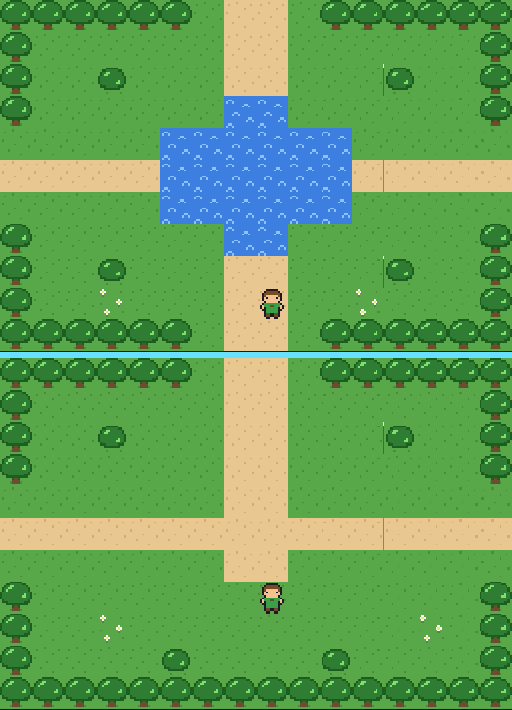
The frame time dt comes from the clock (Date.now()), not from counting ticks. So the slide takes the same time on a slow phone as on a fast computer.
Doors: fade out, move, fade in
The door and the cave exit are ordinary tiles, not controls. Each frame in play, the script asks which tile is under the middle of the hero:
var tile = ctx.ui.tileAt('map', middleX, middleY).tile;
if (tile === DOOR_TILE && !inCave(g)) goThrough(ctx, g, 'cave');
goThrough switches to fade, stops the hero and plays fade_out. Then the script just waits for the animation. When it finishes, the screen's animation_end event calls faded with the animation's name. On fade_out it moves the hero and the camera to the other side while the screen is black, then plays fade_in. On fade_in it goes back to play.
Letting the animation drive the timing means there's no timer to keep in step.
Changes happen after the script returns
Everything a script asks for (setPosition, setText, setVisible…) is applied when the handler returns. So getElement('camera') right after setPosition('camera', …) in the same handler still reports the old position.
That's why showHud(ctx, g, cam) takes the camera's new position as an argument instead of asking for it. The minimap dot is attached to the camera, but it's still placed in world coordinates: the camera's position plus its cell on the minimap.
Gems and the sign
Gems are checked each frame with a rectangle overlap test between the hero and each gem not yet collected (g.got remembers which). A found gem is hidden, counted and shown in the HUD. The seventh opens the text box with a message.
The sign is a solid control, so you can't walk onto it. When act is pressed, nearSign measures the distance between the middles of the hero and the sign. Close enough opens the text box, and the talk mode stops the hero until act is pressed again.
Touch screens
Nothing in the script is touch-specific:
- The direction inputs have touch drags, so dragging anywhere steers.
- The A button presses the
actinput. - The A button is only shown on touch screens.
Make it yours
- More rooms: widen the tilemap and paint them. Add their names to
NAMES. Rooms don't have to form a grid, as long as the gaps between neighbours line up. - More doors: add another door tile number, or keep one door tile and look up where each door leads by its column and row.
- Enemies: add a sprite with the Follower component to chase the hero, and take a heart away when they touch.
- A sword: play an attack clip on
act, and check a small rectangle in front of the hero for enemies. - A leaderboard: time how long the seven gems take and publish it. Lowest time wins, with order
ascin File → Publish to Arcadia….