Star clicker
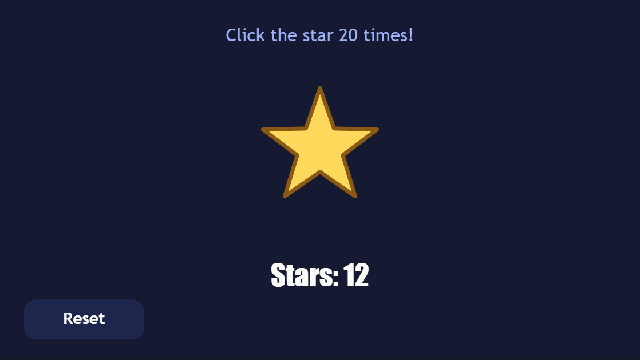
Click the star twenty times to win. The star bounces and pops each time you click it, a counter keeps score, and when you reach twenty a You did it! button appears and takes you to the winning screen.
This is the template where you write your first scripts. Each one is tiny, just a few lines, and belongs to a single control: the star has a script, and so does the Reset button. Everything else is done with actions, like in Menu screens.
What you'll learn
- Keeping the score in a screen variable, and showing it in a label with
${score}. - Writing a small script and attaching it to a control's
clickevent. - Making a button appear by itself with VisibleIf, once the score is high enough.
- Making a short animation and starting it from a script.
- Using a script and actions on the same event.
Glossary
| Word | What it means |
|---|---|
| Screen variable | A named value the screen remembers while it's open, like score. Every screen starts with fresh variables each time it opens. |
${score} | Written inside a label's text, it's replaced by the value of the variable score, and updates by itself. |
| Script | A few lines of JavaScript that run when an event happens. |
| Function | A named block of script. An event runs one function, like addPoint. |
| ctx | What every function is given. ctx.state reads and writes variables, and ctx.ui changes controls. |
| VisibleIf | A condition on a control, like score >= 20. The control only shows while it's true. |
| Animation | Changes to a control over time: here the star grows a little and shrinks back. |
Rebuild it from scratch
1. Project and screens
- File → New project (Ctrl+N), named
Star clickerwith the Idclicker. - In Project → Project settings…, set Made for to Web & desktop only.
- Make three screens, all 320 × 180:
title(tick Main screen),gameandwin. Use **New screen and Screen settings** above the canvas. - Give each screen a dark background Panel that fills it.
If you've done Menu screens, the title and win screens will feel familiar:
| Title | Win |
|---|---|
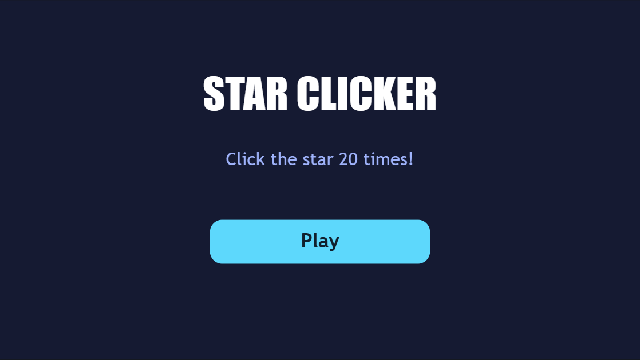 | 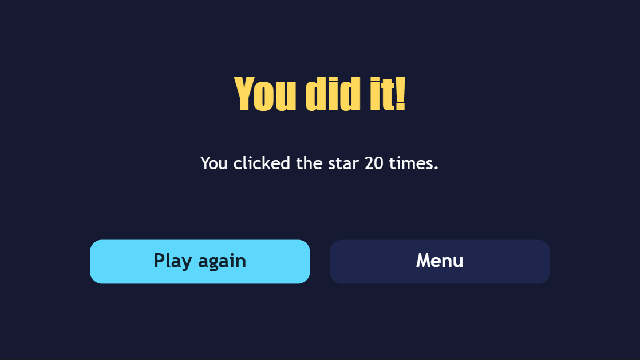 |
titlehas a big label, a hint (Click the star 20 times!) and a Play button. The button'sclickhas two actions:play_sound(a click from the Sound effect maker), thenopen_uiwith the valuegame.winsaysYou did it!, and has Play again (open_uigame) and Menu (open_uititle). Add a Sound control with a short fanfare from the Music maker, with Autoplay ticked, so it plays when the screen opens.
2. The score variable
- Go to the
gamescreen and click Screen settings. - In Variables, type
score=0. The game screen now has a variable calledscorethat starts at 0 every time the screen opens.
3. The star and the score label
- From the Toolbox, open Shapes and drag the star onto the screen. Call it
star, make it 60 × 60, and place it in the middle, near the top (x 130, y 44). Give it a yellow Fill color, a brown Border color with Width 2, and clear its text. - Add a Label called
score_labelbelow it. Set its Text to:
Stars: ${score}The ${score} part shows the variable's value, so the label counts up by itself.
- Add a label at the top that says
Click the star 20 times!.
4. Your first script: the star
- Select the star and open the Events tab. Pick
click. - Under Client, click + Add action, choose
play_sound, and pick a pop sound. Make one with Coin in the Sound effect maker. - Now click New Script. A script file and a function are made for you. Put these lines inside the function:
   var score = Number(ctx.state.get('score')) + 1;
   ctx.state.set('score', String(score));
ctx.ui.animate('pop');- Click Save & Assign.
In the template, the whole script, scripts/client/star.js, looks like this:
// The star's script. Its click event runs addPoint.
function addPoint(ctx) {
  var score = Number(ctx.state.get('score')) + 1;
  ctx.state.set('score', String(score));
  ctx.ui.animate('pop');
}
Line by line:
ctx.state.get('score')reads the variable. Variables are stored as text, soNumber(…)turns it into a number before adding 1.ctx.state.set('score', …)saves the new value. The label updates straight away.ctx.ui.animate('pop')starts the animation you'll make in step 6.
5. The Reset button
- Add a Button called
resetin the corner with the textReset. - On its
clickevent, add aplay_soundclick. Then use New Script again, with just this one line inside the function:
ctx.state.set('score', '0');That's scripts/client/reset_button.js in the template. A second control, with its own little script.
6. The pop animation
- Open Advanced → Animations and click + New animation. Call it
pop, 160 ms long. - Add four tracks with + Track, all on the
star:x,y,widthandheight. - Give each track three keyframes:
| Time | x | y | width | height |
|---|---|---|---|---|
| 0 ms | 130 | 44 | 60 | 60 |
| 70 ms | 125 | 39 | 70 | 70 |
| 160 ms | 130 | 44 | 60 | 60 |
The star grows by 10 and moves up-left by 5 at the same time, so it looks like it grows from its middle.
7. The winning button
- Add a Button called
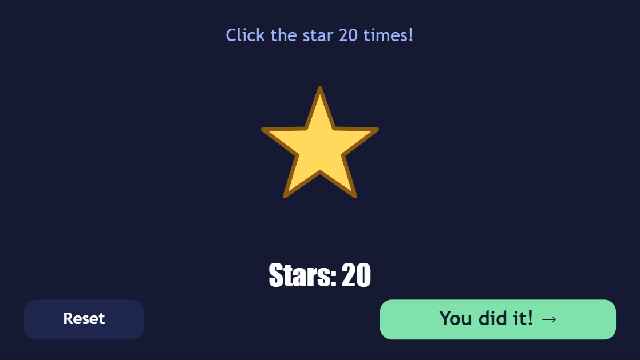
you_did_itwith the textYou did it! →, and make it green. - In Properties, under Behavior, set VisibleIf to:
score >= 20- On its
click, add the actionsplay_sound(click) andopen_uiwith the valuewin.
The button is hidden until the score reaches 20, and then it appears by itself. No script needed.
8. Play it
Press Preview (F5), click the star twenty times, and win. Then press Play again: the score is back to 0, because the game screen starts fresh every time it opens.
How it works
- The score lives on the screen.
scoreis a screen variable. The star's script changes it, the label shows it, and the winning button watches it. None of them needs to know about the others. - Scripts and actions on the same event. The star's
clickplays a sound (an action) and runsaddPoint(a script). Actions are the quick way to do simple things. Scripts are for anything that needs a little thinking, like adding 1. - Screens start fresh. Leaving a screen and coming back resets its variables. That's why Play again starts from 0 without any reset code.
Make it yours
- Change the goal: edit the hint label, the VisibleIf (
score >= 50) and the win screen's text. - Make each click worth more: change
+ 1to+ 5. - Add a second star with its own script that takes a point away.
- Draw your own star in the Pixel editor and give it to the star shape as its Skin image (Properties → Appearance). It keeps its
clickevent. An Image control has noclick, so the shape is what you want here.